



RTL-SDR V3 easy installation and programs
The RTL-SDR V3 is an SDR device based on the RTL2832U and R820T2/R860 chips, designed to receive and decode radio signals across a wide range of frequencies. Initially developed as a DVB-T (digital TV) receiver, it was adapted to function as an SDR, making it a flexible tool for listening to and analyzing radio signals.

Technical Specifications
Supported Frequency Range:
- Direct Sampling Mode (HF): 500 kHz - 24 MHz.
- Standard Mode (VHF/UHF): 25 MHz - 1.75 GHz.
TCXO Precision (Crystal Oscillator):
- ±1 PPM temperature-compensated crystal oscillator, ensuring frequency stability under varying thermal conditions.
Connections:
- SMA female connector for antennas.
- USB 2.0 port for computer connection.
Integrated Bias-T:
- A software-enabled Bias-T circuit to power active antennas or preamplifiers directly from the dongle.
Compact Design:
- Small and portable, ideal for field use.
Key Features
Direct Sampling Mode for HF:
- Enables the reception of shortwave bands without hardware modifications. Perfect for listening to amateur radio bands, broadcast signals, and emergency communications below 30 MHz.
Software-Activated Bias-T:
- Powers active antennas or preamplifiers without external power supplies.
Extensive Software Support:
- Compatible with a wide range of SDR software on Windows, macOS, Linux, and Android.
Reduced Spurious Signals:
- Hardware improvements reduce some unwanted interference and harmonics.
Multiband Support:
- Continuous coverage from low frequencies (HF) to microwaves (1.75 GHz).
Main Applications
General Radio Listening:
- Receive AM/FM, SSB (single sideband), and digital modulations. Check the legislation to find out if listening on certain frequency bands is permitted.
ADS-B Monitoring:
- Track aircraft in real-time through ADS-B signals.
Decoding Digital Signals:
- Analyze protocols like ACARS (aviation messaging), AIS (marine tracking), DMR, P25, TETRA, and more.
Amateur Radio Astronomy:
- Observe signals from astronomical phenomena (e.g., meteors and pulsars).
Emergency Frequency Monitoring:
- Listen to aeronautical, maritime, and emergency communications bands.
Spectrum Analysis:
- Use as a portable spectrum analyzer to observe signal behaviors.
Compatible Software
For Windows:
- SDR# (SDRSharp): User-friendly interface for listening and analysis.
- HDSDR: Flexible software for receiving and recording signals.
- SDR-Console: Suitable for advanced users.
For Linux and macOS:
- GQRX: A simple and functional graphical interface.
- GNU Radio: For advanced signal processing.
For Android:
- SDR Touch: Allows use with smartphones and tablets via OTG adapters.
Specialized Software:
- Dump1090: For monitoring ADS-B aircraft tracking.
- AISDeco: For decoding AIS signals in marine tracking.
How to Get Started with the RTL-SDR V3
Install the Software:
Before connecting the RTL-SDR V3 dongle, you must ensure that Microsoft .NET 8.0 x86 Desktop Runtime is installed, which you can download here: https://dotnet.microsoft.com/en-us/download/dotnet/thank-you/runtime-desktop-8.0.6-windows-x86-installer
Download sdrsharp-x86.zip from www.airspy.com

- Unzip the sdrsharp-x86.zip file into any folder, but do not run the program directly from within the .zip file and do not extract it into the Windows Program Files directory.

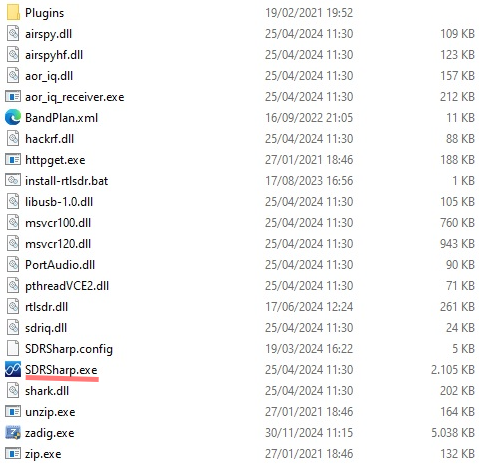
Double-click on install-rtlsdr.bat and, in the window with a black background, press any key when prompted by the program to complete the installation. The window with the black screen will disappear. Check that the rtlsdr.dll and zadig.exe files have been downloaded to the sdrsharp directory.

If the file zadig.exe is not present, it must be installed.
Download Zadig
Zadig - USB driver installation made easy
Zadig is a Windows application that installs generic USB drivers such as WinUSB, libusb-win32/libusb0.sys, or libusbK, which are necessary for a wide range of USB devices to communicate with Windows. It is particularly useful for RTL-SDR because standard drivers do not support this device. Download Zadig from its official website and launch the application.
Connect the RTL-SDR Device
Before running Zadig, connect your RTL-SDR dongle to a USB port on your computer. This ensures that the device is ready and detected by Zadig.
Open Zadig and Select the RTL-SDR Device
Zadig, once you start clicking on Zadig.exe, should automatically detect the RTL-SDR dongle. Open the dropdown list within the Zadig interface and select the device listed as “Bulk-In, Interface (Interface 0)” or a similar name. If the device does not appear in the list:
- Check your connections and make sure the dongle is properly plugged in. If the device does not appear in the drop-down menu, proceed with the installation, as long as “Install WCID Driver” appears
- If there are more than one dongle, repeat for each dongle.
Install WinUSB Drivers
With the device selected, proceed to install the WinUSB drivers by clicking on "Install Driver". This action replaces any existing drivers that the dongle might be using with ones that are compatible with RTL-SDR operations. This step is essential as it ensures the rtl1090 software or any other SDR software can communicate effectively with the dongle.
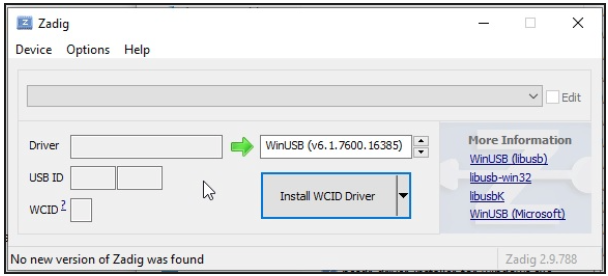
Click Options>List All Devices
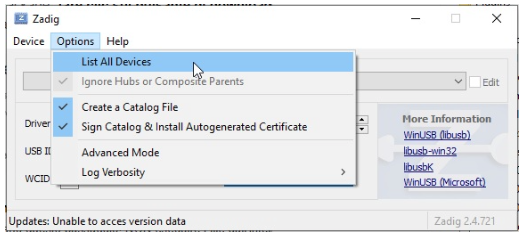
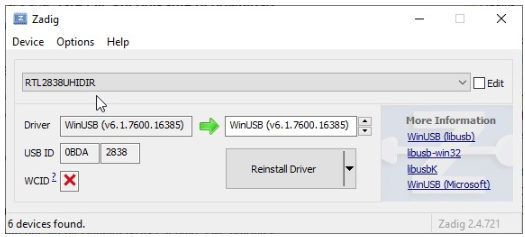
From the dropdown list, several devices might appear: any of them are generally fine, but ensure that "Bulk-In, Interface (Interface 0)" or "RTL2832UHIDIR" or "RTL2832U" or "Blog V4" is selected in the USB ID box, and that the selected dongle's USB ID is "0BDA 2838 00".
Make sure that "WinUSB" is displayed in the box indicated by the green arrow, while the box on the left is not important. Click on "Replace/Install Driver" This operation may take a few minutes, and during this time, you will see "Installing Driver" When "The driver was installed successfully" appears, click "Close" and close the Zadig window.
- Connect the dongle to your computer via USB.
- Use an appropriate antenna for the frequency band you wish to monitor.
In the sdrsharp folder, right-click on zadig.exe and select "Run as administrator"
Click Options>List All Devices

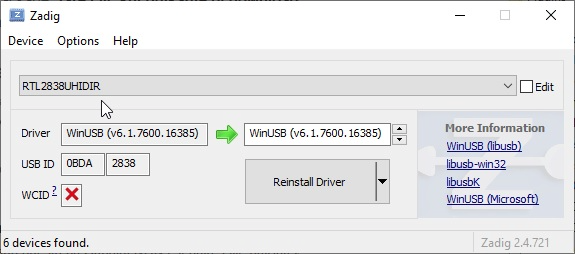
From the dropdown list, several devices might appear: any of them are generally fine, but ensure that "Bulk-In, Interface (Interface 0)" or "RTL2832UHIDIR" or "RTL2832U" or "Blog V4" is selected in the USB ID box, and that the selected dongle's USB ID is "0BDA 2838 00".
Make sure that "WinUSB" is displayed in the box indicated by the green arrow, while the box on the left is not important. Click on "Replace/Install Driver" This operation may take a few minutes, and during this time, you will see "Installing Driver" When "The driver was installed successfully" appears, click "Close" and close the Zadig window.
- Click SDRSharp.exe
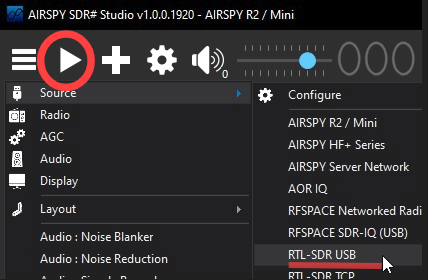
From the dropdown menu in the upper left corner with the three horizontal lines, select "Source" click on "RTL-SDR USB" and to start listening, click on the "Play" icon, the second icon from the top left.
The User Guide for RTL-SDR V3 can be found
Recommended Accessories
Antennas:
- Wideband Antenna: For covering a broad frequency range.
- Loop Antenna: Ideal for HF signals.
- Discone Antenna: For VHF/UHF signals.
Preamplifiers:
- Enhance sensitivity for specific frequency bands.
Filters:
- Band-Pass Filters: Reduce interference on specific bands.
- Notch Filters: Eliminate unwanted frequencies, like FM broadcasts.
Advantages
Affordable:
- Excellent value for beginners and professionals.
Versatile:
- Supports a wide range of applications, from listening to decoding signals.
Software Compatibility:
- Works with nearly all available SDR programs.
Portable:
- Small and lightweight, perfect for mobile use.
Limitations
Heating Issues:
- The dongle may overheat during extended use; adequate ventilation or heatsinks are recommended.
Dynamic Range:
- Limited compared to high-end SDR devices.
Antenna Dependency:
- Reception quality depends heavily on the antenna used.
For more details, guides, and resources, visit the official RTL-SDR website.

